iPhone widgets
Using iPhone Widgets for Journaling and Habit Tracking
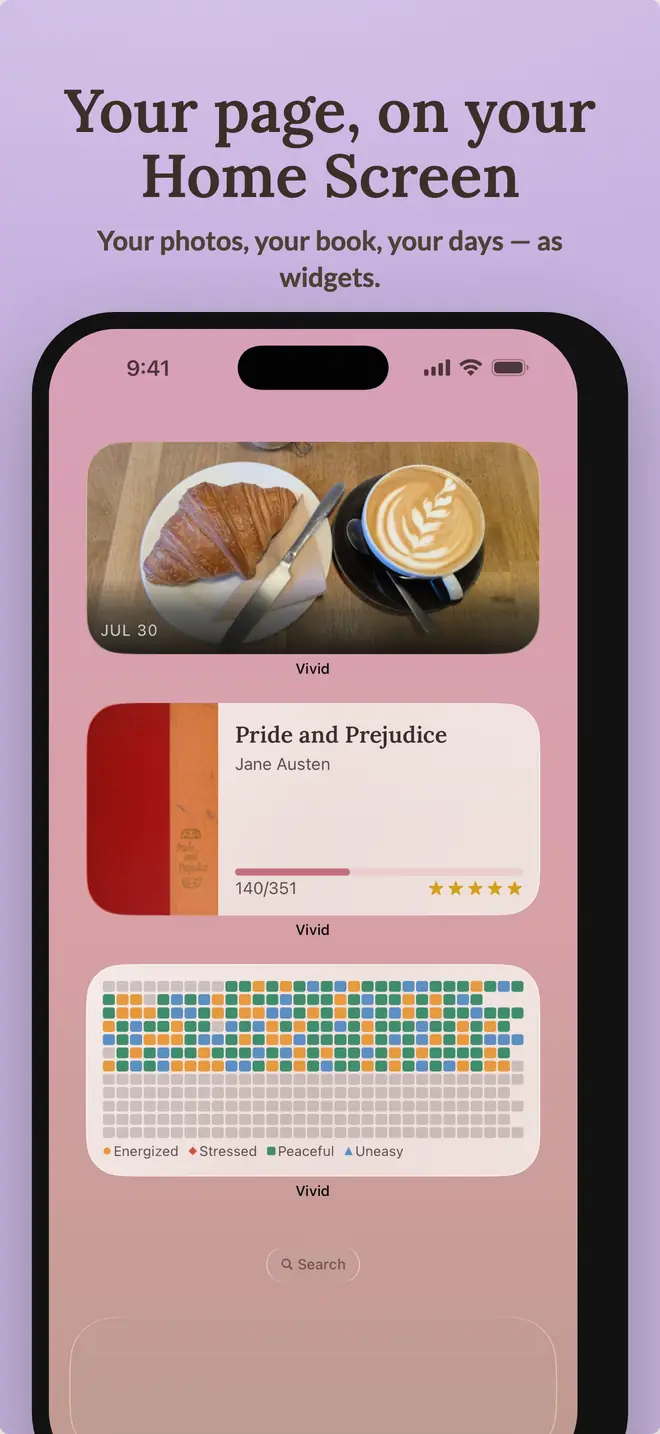
A journal widget puts one small action on the screen you already see all day. It works well for a repeated check-in. It is less useful for anything that needs a full page of context.
Choose one action
Use an interactive widget to check a habit or add water without opening the app. A progress widget can remind you that today’s page is still empty. Leave trends and written reflection inside the journal, where there is room to read them.
Match the widget to the moment
Put a morning habit near the apps you open in the morning. A Lock Screen widget can show today’s progress or a streak before you unlock the phone. If you stop seeing it after a few days, move it or remove it.
Match the rest of your Home Screen
Vivid widgets use the colors and icons from your journal theme. Matching wallpapers carry that theme to the Home Screen, and six of the themes ship a matching app icon so the whole screen agrees.
Review whether the widget changed behavior
After a week, check whether you used the widget. Keep it if it saved a few taps or reminded you at the right time. Remove it if it only displays a number you never act on.
Back to the page
your day, kept.
One page for writing, habits, mood, sleep, and reading, stored in your own iCloud. Free to start on iPhone and iPad.